Split-screen mutliplayer has been dying ever since the emergence of online play. And yet there is a certain charm to immediacy of human connection it provides. Nowadays many games don’t don’t even provide options for local-multiplayer anymore. Here I will show that we don’t need them to.
Split-screen multiplayer
The idea of slip-screen multiplayer is simple: in the presence of multiple players and only one videogame console, the game would split its available screenspace into two or more pieces on which it can then display individual player’s perspectives.
This is a lot of fun since you’re not just playing videogames with someone whom you talk with over the microphone but someone sitting next to you.
Sadly — in the age of online multiplayer this mode of play has become less and less common.
The limitations of modern computers
Though many games that are primarily played with a controller can support some form of local multiplayer, the same privilege seems wholy absent from games played using a mouse and keyboard.
This is because of a fundamental limitation present in most modern desktop environments: No matter how many keyboard you plug into your computer and no matter how many extra mice you connect – you will usually be left with a single cursor and a single source of keyboard input.
Wayland to the rescue!
Luckily this is not something to sulk over. The wayland display protocol can fix this. A seat is what wayland calls a grouping of input devices and it just so happens that you can have as many of them as you want. In theory nothing stops you from plugging in an extra set of mouse and keyboard into your computer and getting a second cursor that can interact with windows entirely independently of the first. There is however one issue with this idillyc vision.
Everyone is bad at programming
Almost no standalone wayland programs support multiple seats well. They are in-fact not conformant to the core wayland spec. This can take many forms:
- OBS crashes if not every seat has a keyboard
- GTK doesn’t see seats that were added after an application has started
- GLFW only recognises a single seat
- Many other clients (for example firefox) simply merge events as if there only was one seat.
But there are also some rays of hope:
- SDL seems to have pretty good multi-seat support.
- GTK works well if all seats are present when the application launches.
- Most applications that do simply merge the inputs remain generally usable.
Sadly compositors aren’t much better. Most are painfully single-seated and even ones that do support multiple seats may not have any way to easily reassign input devices to different seats.
There are reasons for this, writing a compositor is hard and designing window management policy is hard too. So multiple seats often get overlooked.
River is here
River is a wayland compositor written by the venerable Isaac Freund. Since river defers all window management policy to an external process, it has no design reason to neglect multi-seat.
And since I’ve written both a window manager and an input config tool for it we’re ready to go.
Setting up a second seat
You need the following software for this section:
In order to start multiplayering we must first set up a second seat. The easiest way of doing that is to plug in a second set of mouse and keyboard.
Channel
Now that we’ve plugged in our input devices we want to assign them to a new seat. We first want to figure out the names of our mouse and keyboard. The easiest way is to use libinput list-devices this however is a command that usually requires elevated priveges. So we run the following.
$ sudo -ginput libinput list-devices
In the output of this command you should find something like this:
Device:                  <name of your device>
Kernel:                  /dev/input/event<some id>
Id:                      <some serial>
Once we’ve found all of the devices we’re interested in and noted their names it’s time to configure.
We are going to add a small profile for assigning our devices to a second seat to out channel config:
input {
    profiles {
        player2 {
            seat player2
        }
    }
}
Note
player2 could be any name for a seat. The default seat is called default
And we can now apply this profile to the device whose name we just noted:
input {
    rules [
        name, <name of your device>, player2
    ]
}
If you have channel running and done everything correctly you might see a second cursor on your screen by now.
Rhine
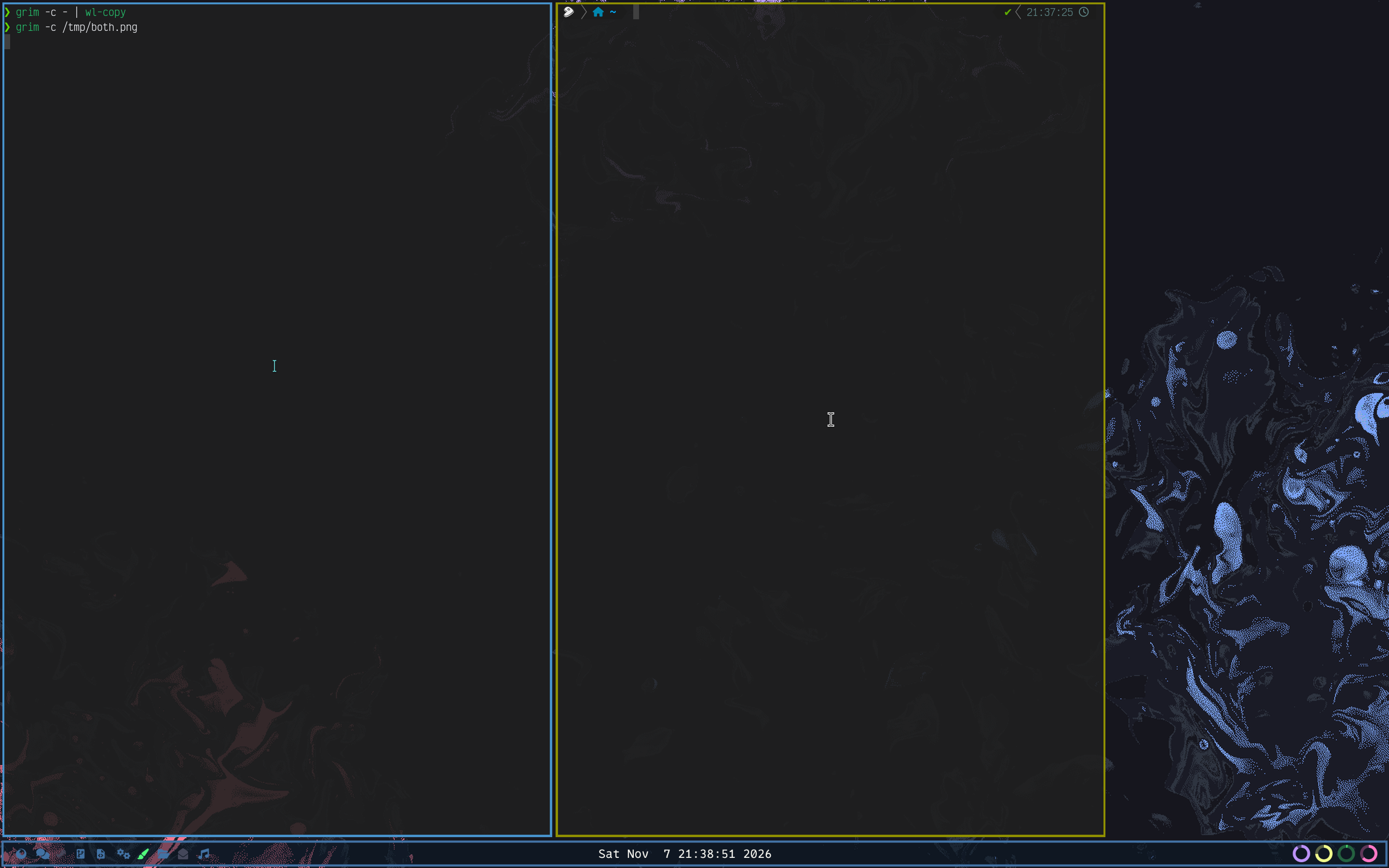
This section is optional but if you’re using rhine then you may want to add some features to distinguish the two seats. We do this by adding the following to our config:
seatrules {
    profiles {
        player2 {
            focus rgb8, 0x90, 0x90, 0
            xcursor {
                theme Adwaita
                size 24
            }
        }
    }

    rules [
        player2, player2
    ]
}
This gives our second seat a different focus colour and a different cursor theme.
Setting up your videogame
Here we’ll use the 2011 videogame Minecraft. Older versions of minecraft use glfw. This is problematic due to glfw’s inability to handle multiple seats. Starting with version 26.3 however minecraft uses SDL instead. So the easiest way is simply to use that version.
The best way to set up minecraft is using Prism Launcher. So we’ll do that. Since we’re going to need to run two instances of minecraft side-by-side we’ll simply set up two instances in prism launcher.
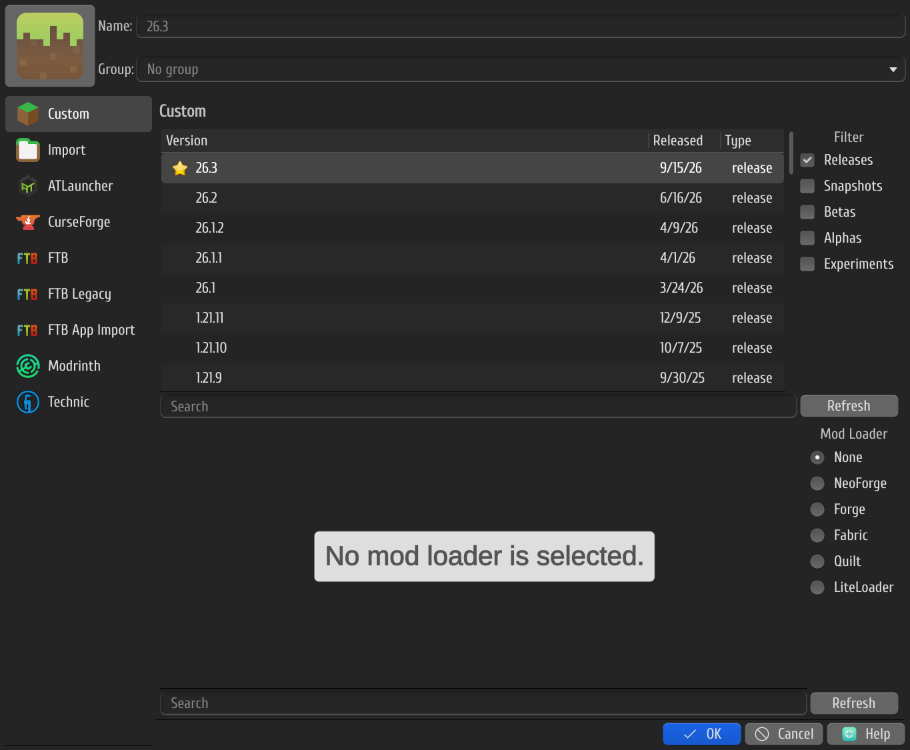
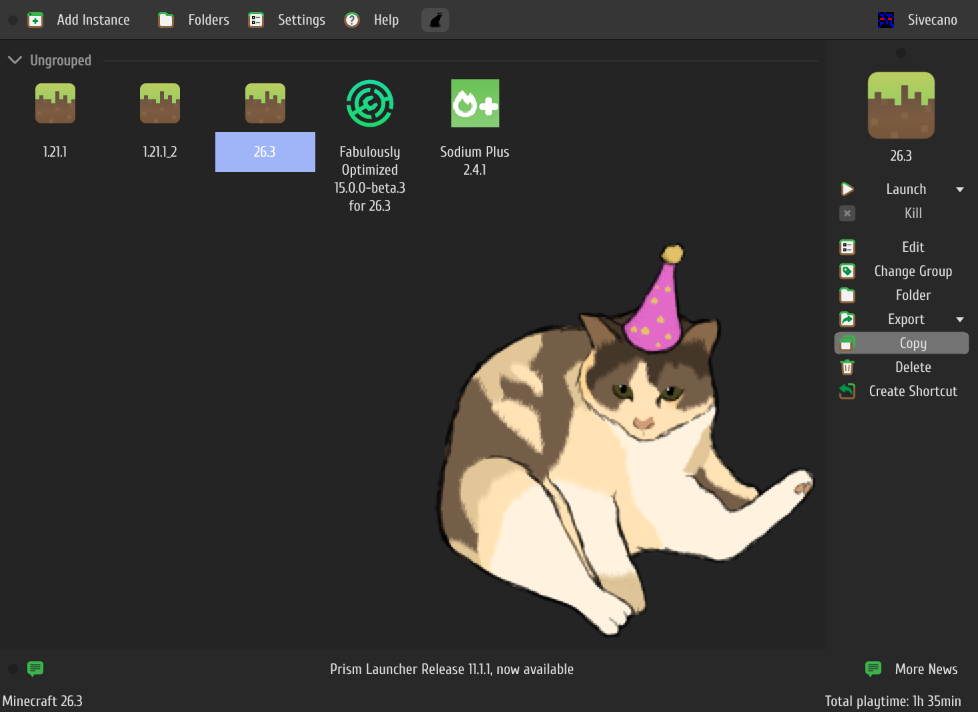
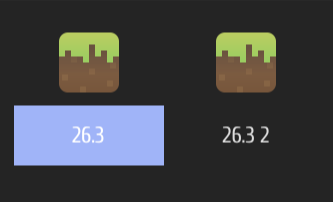
We can now start our minecraft instances. We’re going to need to start them in offline mode. This way we can give them separate names while only owning one account.
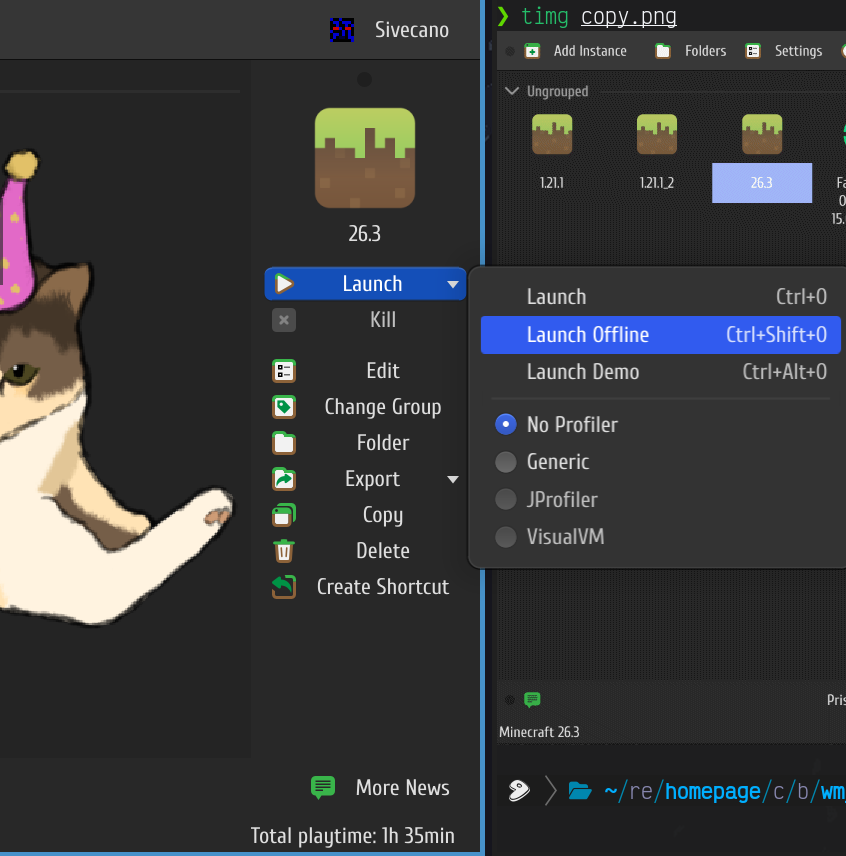
Now that we’ve launched both instances in offline mode we can simply open to LAN and connect the two instances.
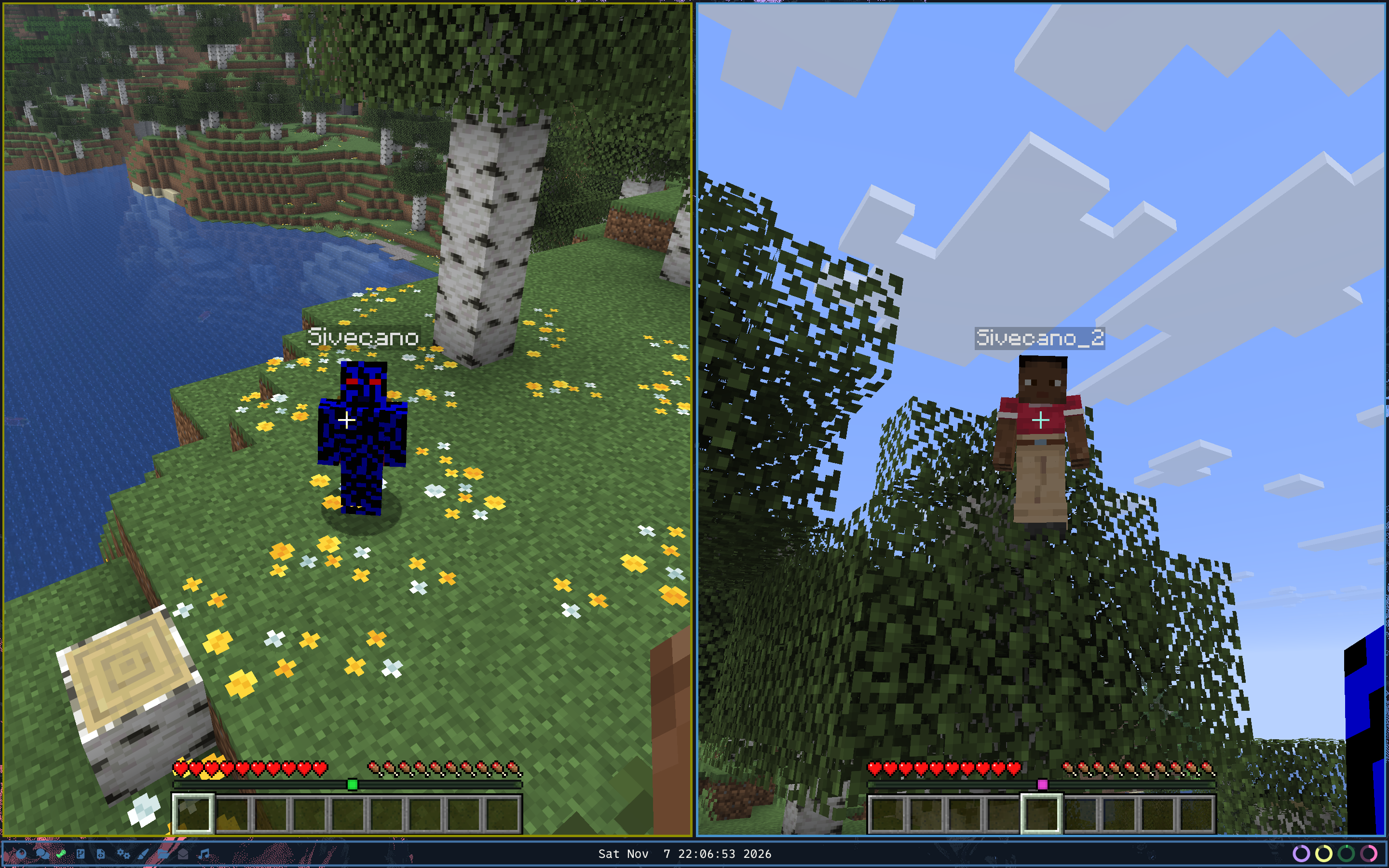
We’re ready to play :)
But what if I want to play older versions of minecraft?
To play older versions of minecraft and/or other games using glfw there are multiple approaches. The easiest is to simply patch glfw using this patch.
The patch should apply cleanly to glfw-3.4 and if you’re on gentoo you can simply put it in /etc/portage/patches/media-libs/glfw and reinstall glfw.
When using this patch we can set the GLFW_SEAT environment variable to change glfw to only use the seat we want (I know it’s a hack but I wasn’t exactly keen on fixing all of glfw).
Note
This hack leave each window interactible by only the specified seats. This can be useful but also a bit of a hassle for setup.
So to keep to our minecraft example let’s spin up a 1.8.9 instance. And make sure to use our system glfw.
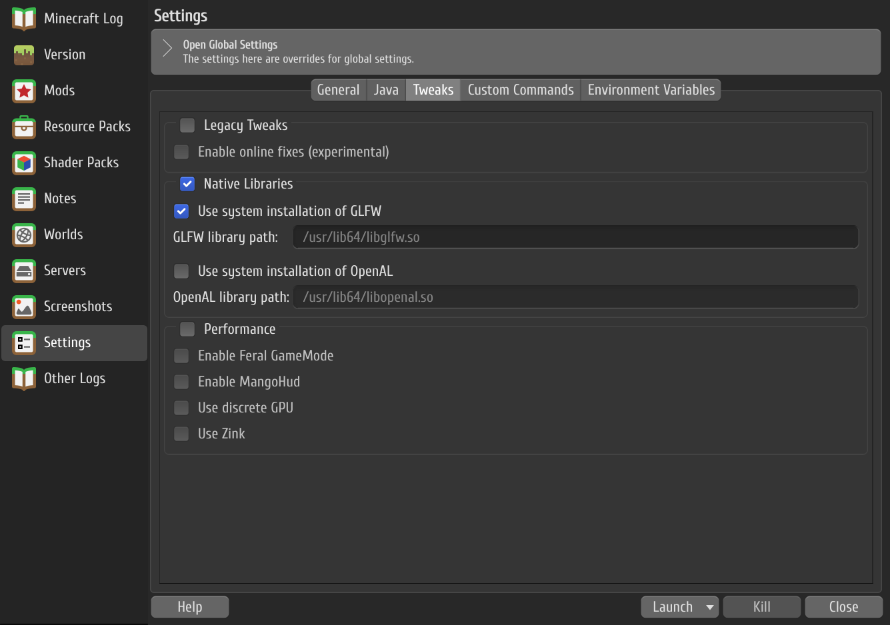
We can now set the environment variable like so.
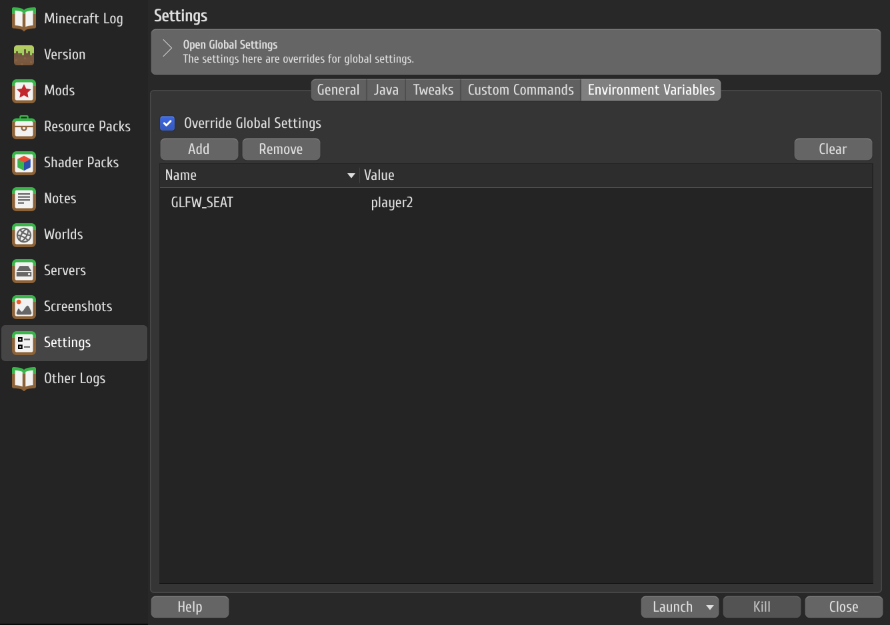
You can now proceed as before and play split-screen multiplayer with a friend.
I hope this was helpful and until next time :P.